
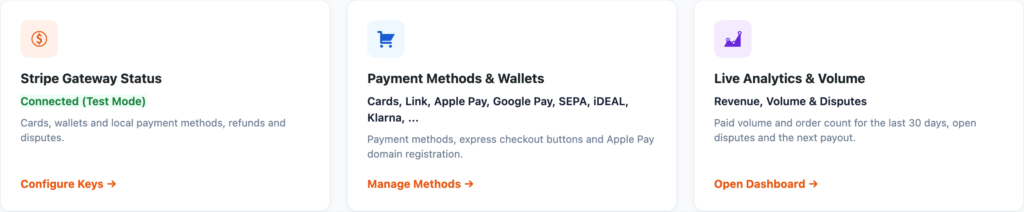
- Install and activate SutraPay for Stripe.
- Go to WooCommerce → SutraPay for Stripe → Settings.
- In your Stripe Dashboard open Developers → API keys and copy the publishable and secret keys.
- Paste the Test keys first and click Test connection.
- Under Card checkout, set the title customers see, the capture method, the statement descriptor and the accepted card brands. Save.
- Open the Webhooks page and create or sync the webhook, so Stripe can tell your site about renewals, refunds and disputes.
- Place a test order with a Stripe test card, then paste your Live keys when you are ready.
⚠️ Important: Webhooks are required for subscriptions billed by Stripe. Without them renewals are still picked up by an hourly check, but late.
The Stripe screens also show payment methods, disputes, payouts and logs. Under Settings you can also choose the Payment Element layout, show methods such as Klarna or iDEAL as their own checkout options, and turn on advanced options (always ask for 3D Secure, refund on cancel, pay-later messaging and more).
Step-by-step guides: SutraPay for Stripe docs – for example separate checkout rows and moving subscriptions from another Stripe plugin.


