Skip to content

Stripe gateway

Free plugin

The free Stripe payment gateway for WooCommerce

Accept cards, Apple Pay, Google Pay, Link and every local payment method you switch on in Stripe, on the classic and the block checkout. Built so a refused checkout never charges a customer.
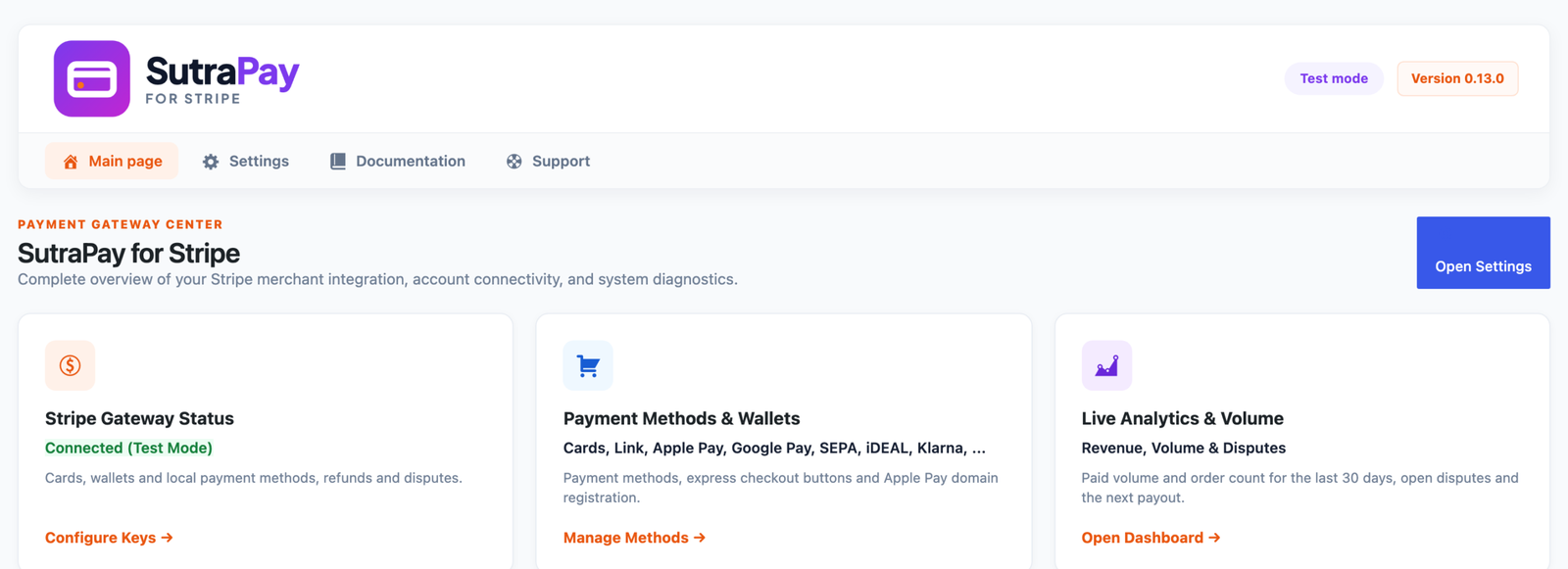
SutraPay for Stripe: hero screen

Charged only after checkout

validated on the server

Why SutraPay for Stripe

Everything Stripe does, inside WooCommerce

One plugin for payments, wallets, saved cards, refunds, disputes, payouts and subscriptions, configured from one settings app.

Stripe Payment Element

Cards with 3D Secure 2 (SCA-ready), Link and the local methods you enable in your Stripe Dashboard: SEPA, iDEAL, Bancontact, EPS, Przelewy24, Klarna, Afterpay. Show them inside the card option or as their own checkout options.

Express checkout

Apple Pay, Google Pay and Link buttons above the checkout, on the cart and on product pages ("Buy now").

Blocks and classic checkout

Works with the WooCommerce Cart and Checkout blocks, the classic checkout, the order Pay page and Add payment method.

WooCommerce Subscriptions

Sign-ups including $0 trials, automatic renewals with saved methods, retries and payment-method changes.

Refunds and capture

Full and partial refunds and manual capture from the order screen; Stripe Dashboard refunds are recorded too.

Disputes and payouts

Answer disputes with text and file evidence, see each payout with its orders, and the Stripe fee and net on every order.

How it works

Built for the way you run your store

Express checkout

One-click wallets where shoppers decide

Turn on Apple Pay, Google Pay and Link buttons, choose their theme and label, and show them on checkout, cart and product pages, with a live preview.

SutraPay for Stripe: express screen
SutraPay for Stripe: methods screen

Payment methods

Turn methods on in Stripe, not in WordPress

Checkout shows every payment method you enable in your Stripe Dashboard that suits the order’s country, currency and amount. Methods that settle later keep the order On hold until Stripe confirms.

Guided setup

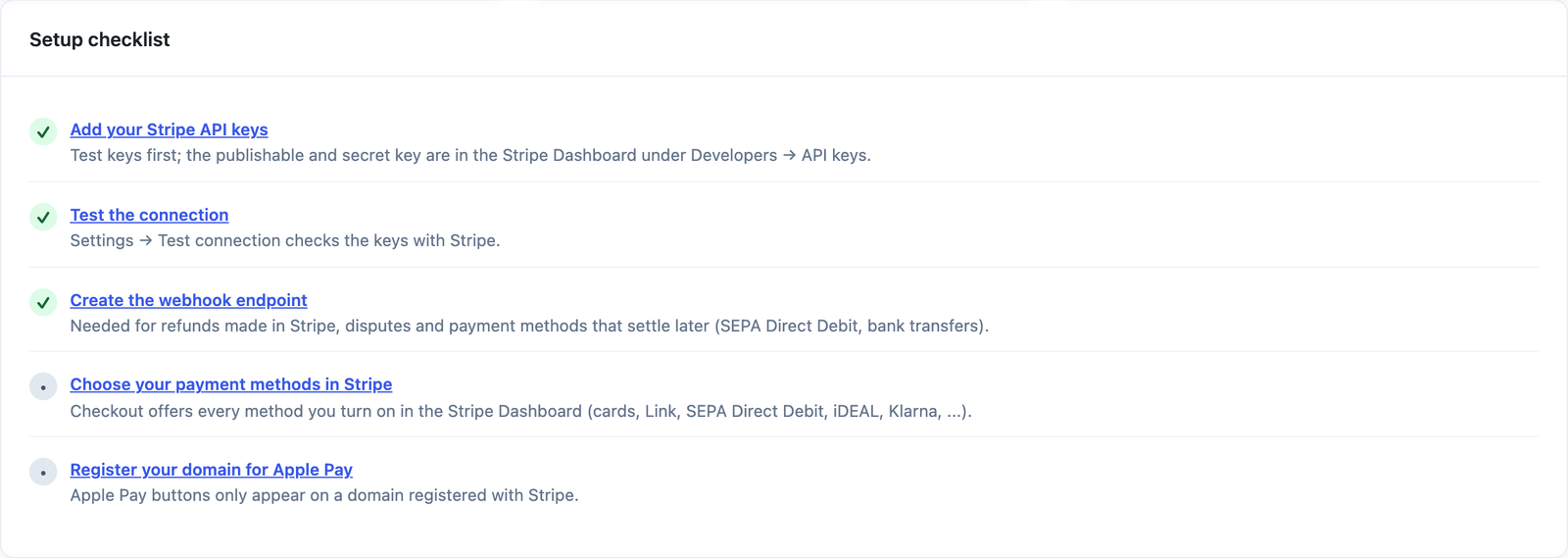
A checklist that tells you what is left

Add your keys, test the connection, create the webhook endpoint with one click and register your domain for Apple Pay, with every step ticked off on the Dashboard.

SutraPay for Stripe: checklist screen

Get started

Set up in three steps

1

Install and add your keys

Install the plugin, open WooCommerce > SutraPay for Stripe > Settings and paste your publishable and secret keys. Test mode is on by default.

2

Create the webhook

Click “Create / Sync webhook” so Stripe can tell your store about payments that settle later, refunds and disputes.

3

Turn on methods and go live

Enable payment methods in your Stripe Dashboard, set up the express buttons, place a test order, then switch to live keys.

Compatibility

Works with the store you already have

FAQ

Frequently asked questions

Does this require WooCommerce?

Yes. The plugin shows an admin notice and stays inactive until WooCommerce is installed and active.

In your Stripe Dashboard, under Settings > Payment methods. The Payment Element shows the ones you turned on that are available for the order (country, currency, amount). No setting in WordPress is needed for a new method. To show some of them as their own options in the checkout’s payment list, tick them under SutraPay for Stripe > Settings > Payment Element > Separate checkout rows.

Open WooCommerce > SutraPay for Stripe > Settings > Payment Element, tick the method under “Separate checkout rows”, give it a title if you like, and save. The method must also be on in your Stripe Dashboard. The row only shows where Stripe offers the method (currency, country, amount), and methods that cannot be charged again (Klarna, Affirm, …) are not offered for subscriptions.

Yes — the Cart and Checkout blocks are supported, alongside the classic shortcode checkout.

Yes. Sign-up (including free trials with nothing due today), automatic renewals, retries and changing the payment method (by the customer or the store) are supported. Renewals can be paid with cards, wallets and the reusable local methods (SEPA Direct Debit, US bank accounts, Bacs, Link).

Yes, when both plugins use the same Stripe account. Under Settings > Advanced, click “Check subscriptions” to see which can be moved, then “Move them to SutraPay”. Each moved subscription keeps the customer’s saved card and renews through SutraPay. Subscriptions that cannot be moved safely are listed with the reason and left as they were. Large stores can use wp sutrapay-stripe move-subscriptions --dry-run, then without –dry-run.

Turn on “Pay-later messaging” under Settings > Advanced and choose the pages (product, cart, checkout, shop). Stripe shows the Klarna, Afterpay / Clearpay or Affirm offer that fits the price, currency and country, and nothing when none does. Turn those methods on in your Stripe Dashboard.

No. The payment details are only collected in the browser; the charge is made on the server after WooCommerce has validated the checkout and created the order.

Start taking Stripe payments today

Free forever, no extra fees from us: you pay only Stripe’s own processing fees.